Share a Case
Share a case so teammates or stakeholders can view documents, reports, and contact details — with the access level you choose.
Share with a user or group
- Open the Cases list.
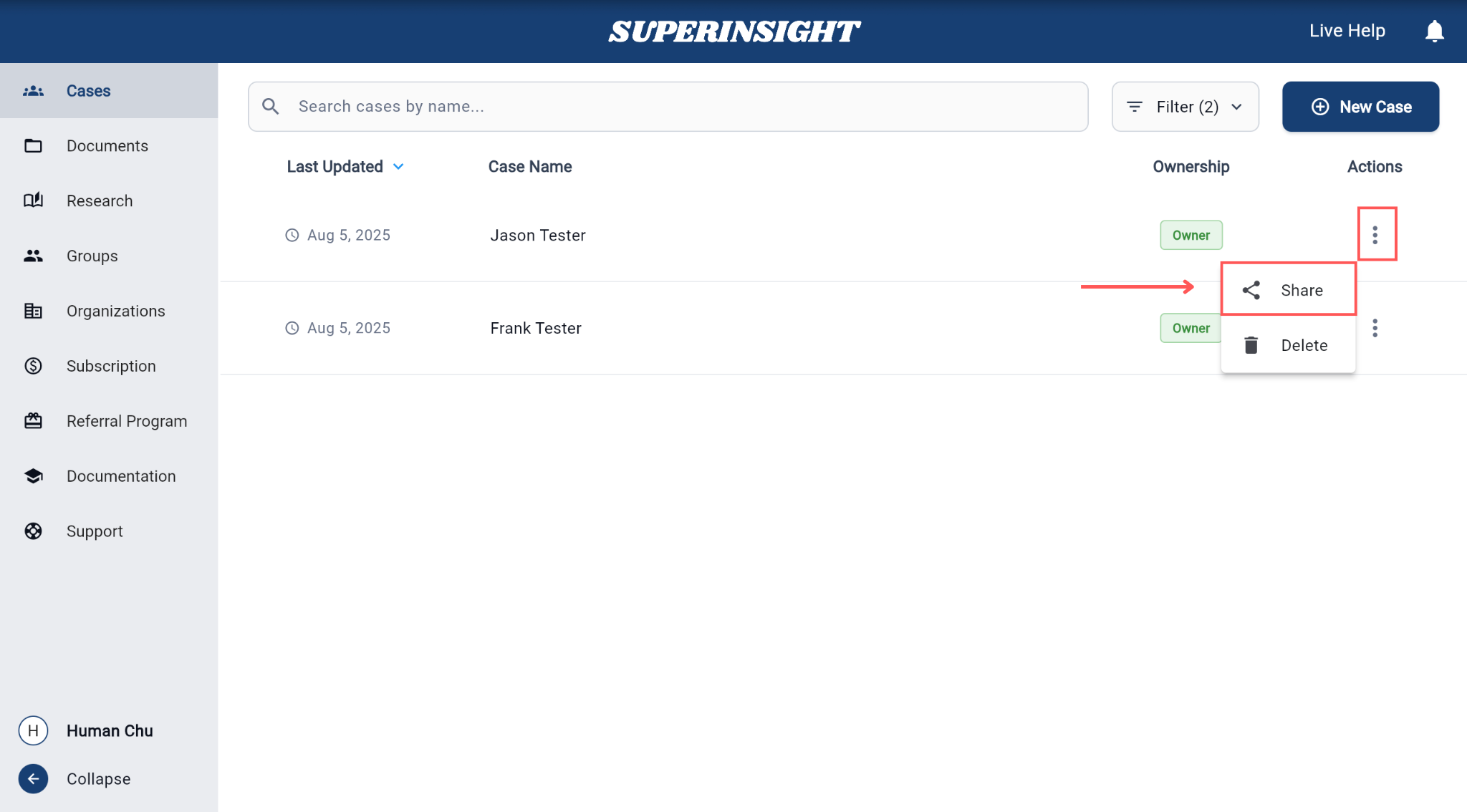
- Click the three-dot menu (⋮) next to the case name.
-
Select Share.
-
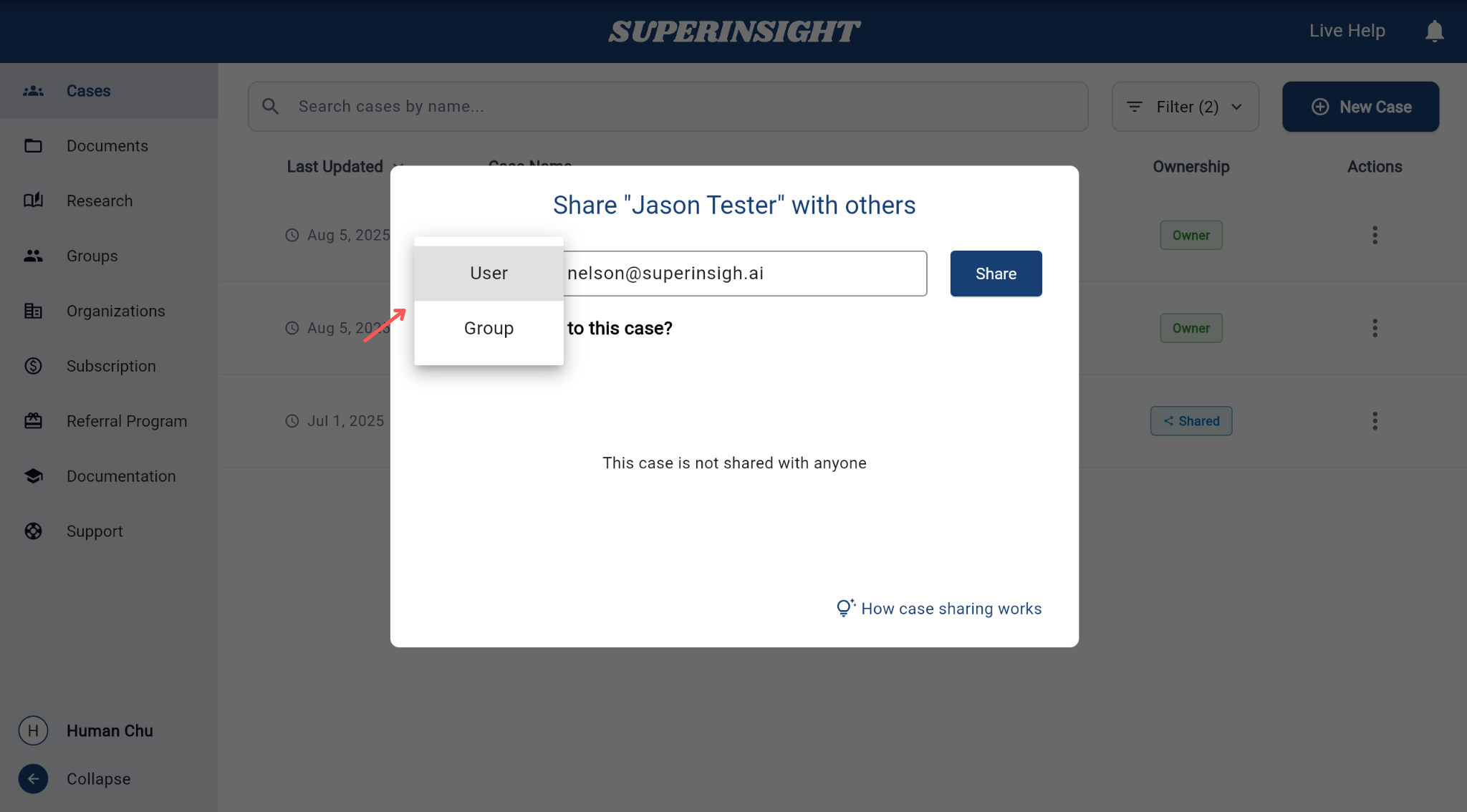
Choose who to share with:
- User — one person
- Group — a whole team or group
-
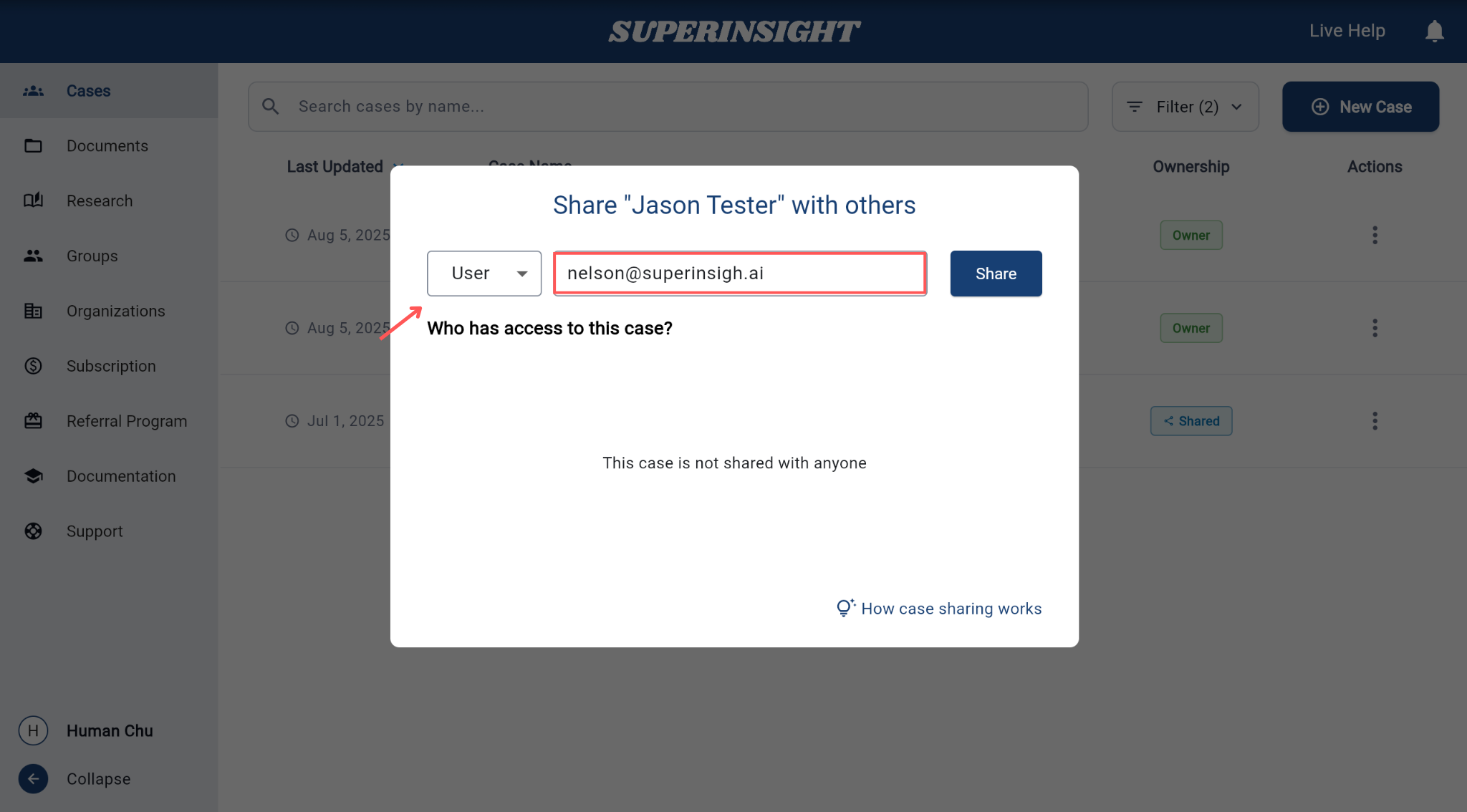
If you chose User, enter their email address. You can add more people one at a time.
-
Confirm the share. Invited people appear under Who has access to this case?
You can also start sharing from the Share button in the left panel when a case is open.
Set access permissions
Control what each person or group can do.
-
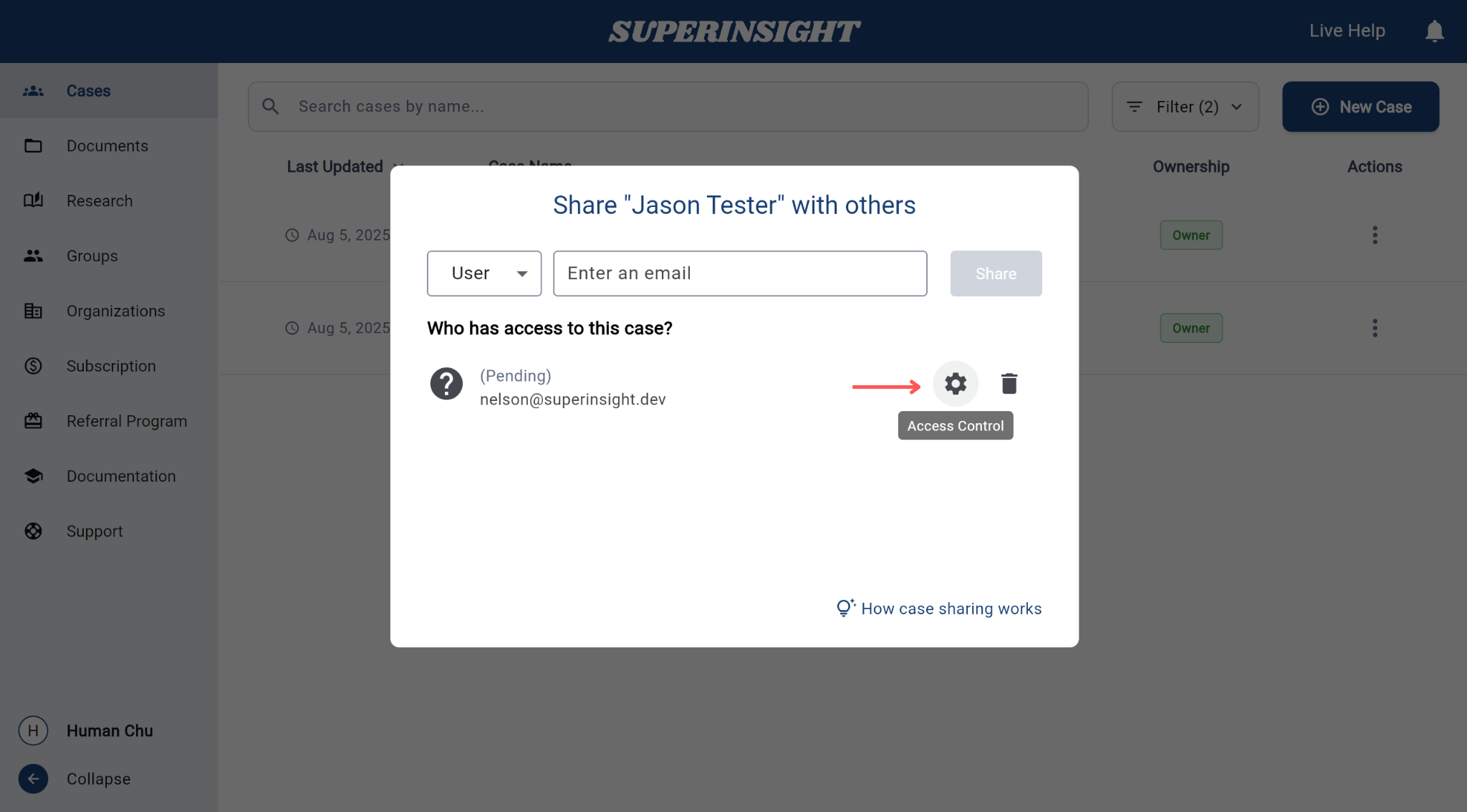
In Who has access to this case?, click the gear icon next to a person or group.
-
For Documents, Reports, and Contact, choose:
- Read — view only
- Write — view and edit
- None — no access
-
Click Update to save.
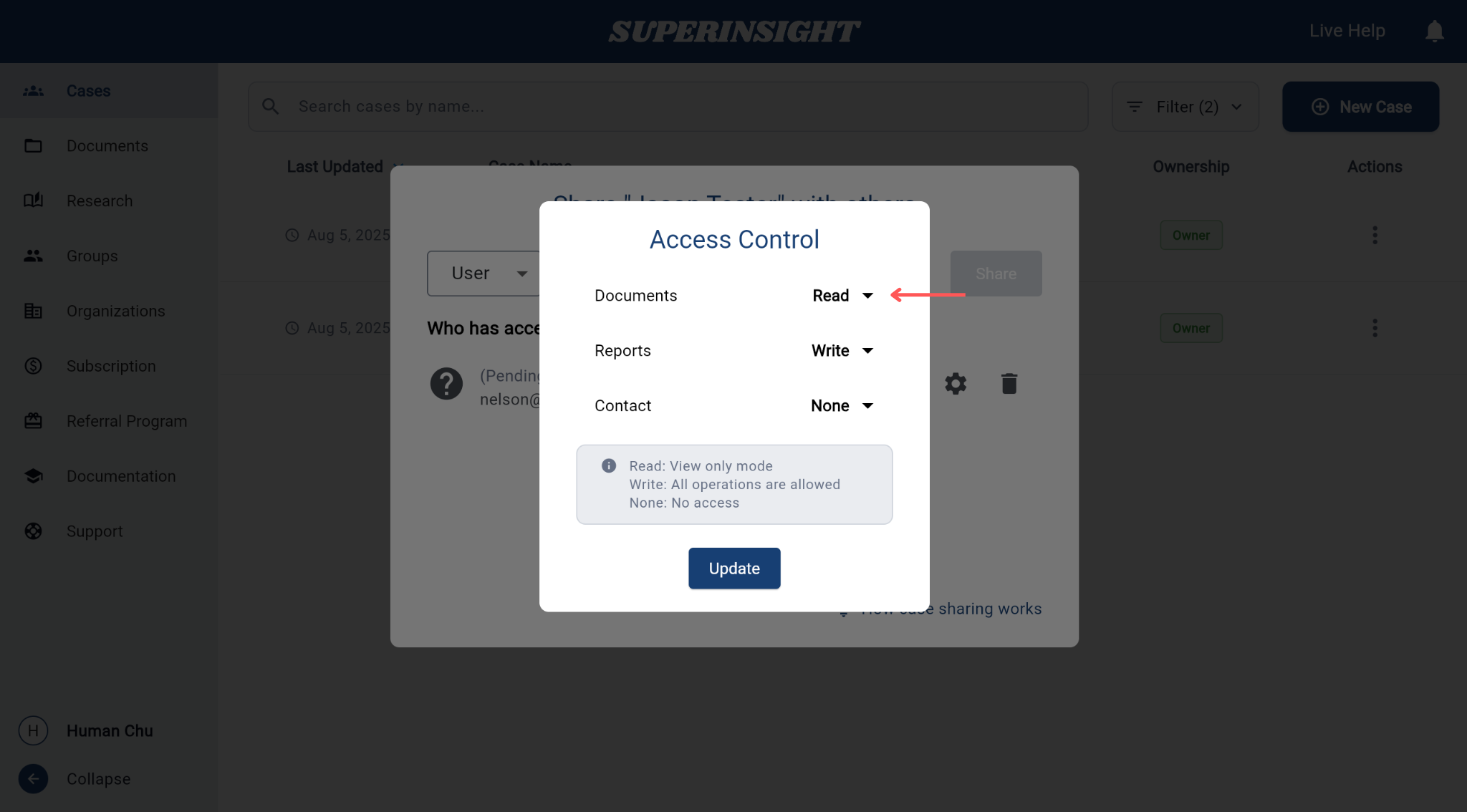
Example
You might let a reviewer Read Documents but set Contact to None.
Accept a shared case
If someone shares a case with you:
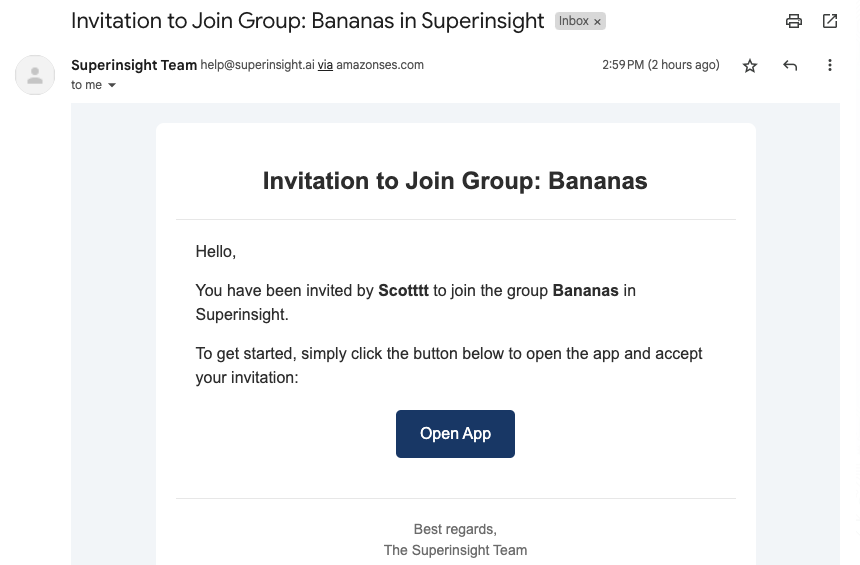
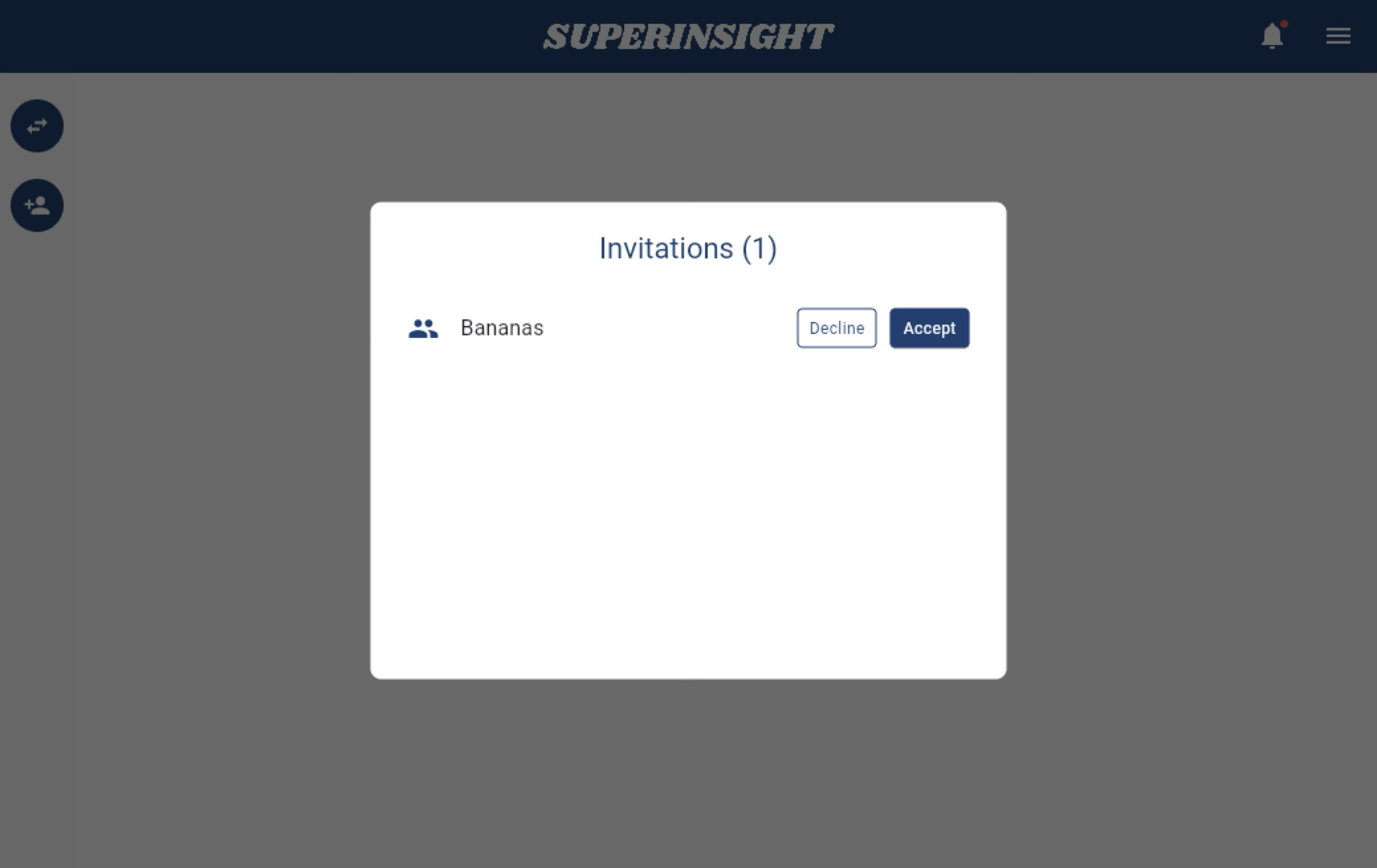
- Check your email invitation and/or in-app notification.
- Accept the invitation.
- Open Cases — the shared case will appear in your list.
Remove sharing
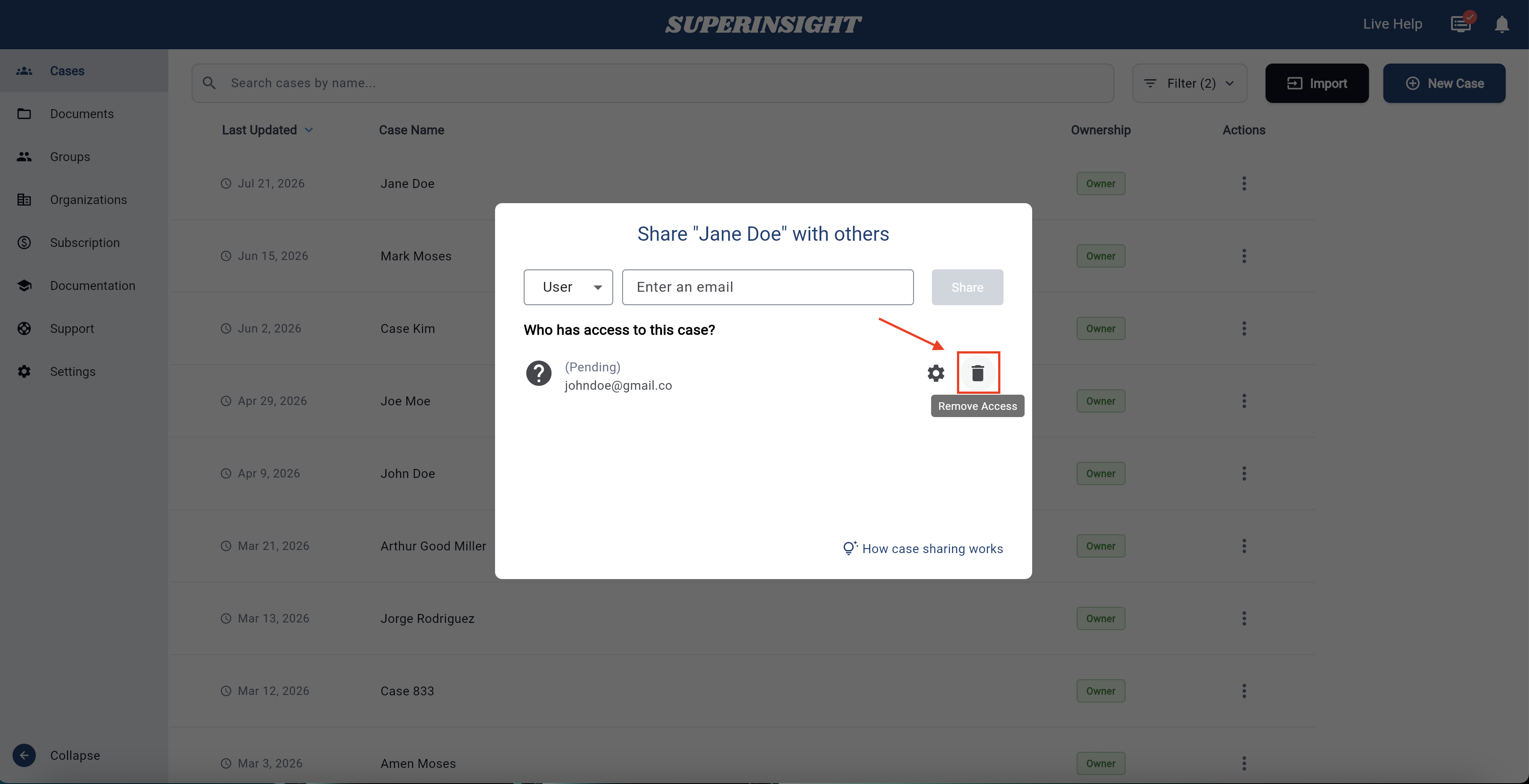
- If you shared the case: open the share dialog, find the person or group under Who has access to this case?, and click the Remove Access (trash) icon next to their name.
-
If a case was shared with you: open the case and click Disconnect, then confirm.
Next steps
- Find and open a case
- Manage groups — share with a whole team at once
- Manage organizations