Find and Open a Case
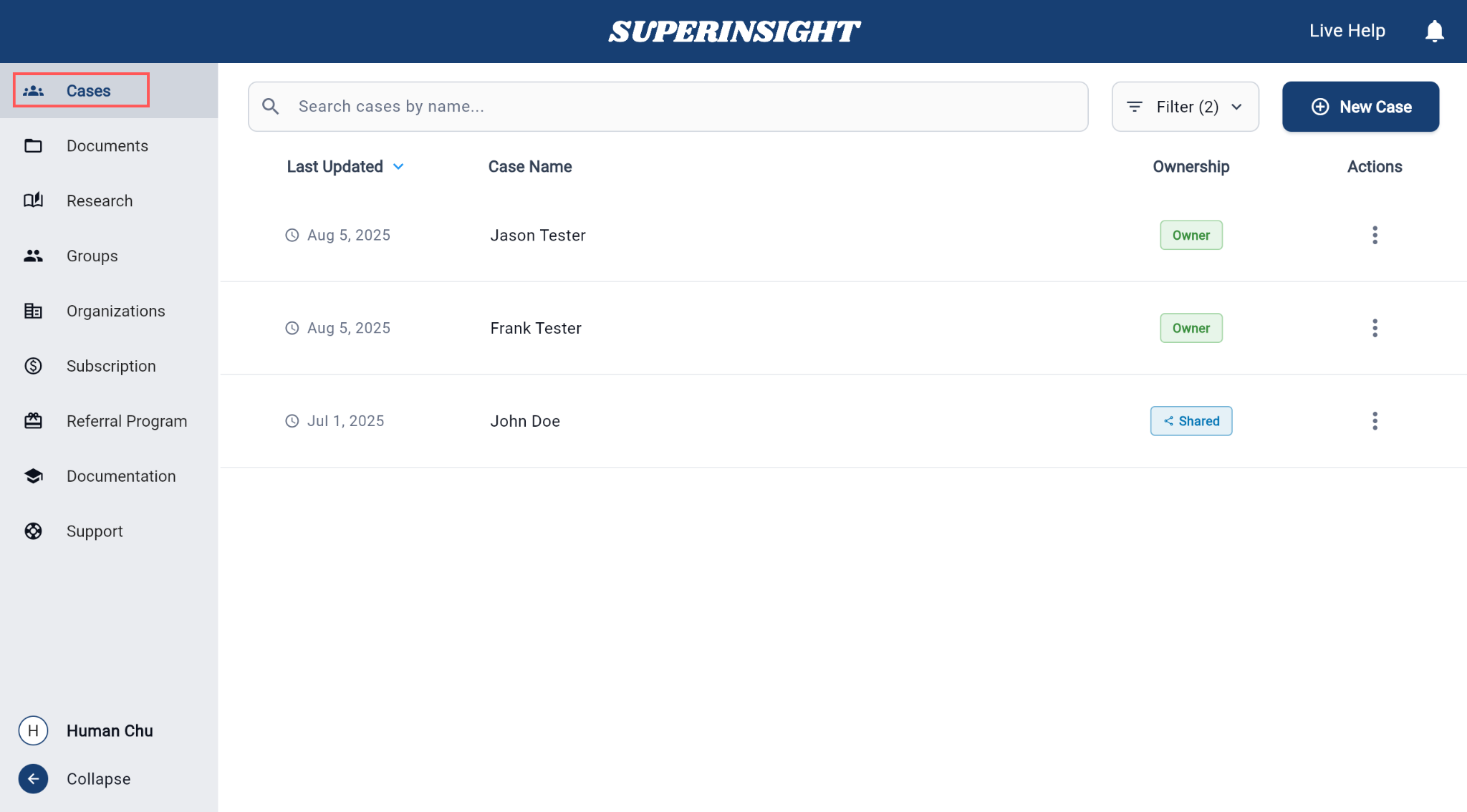
Use the case list to find a case, see who owns it, and open it to work on documents or reports.
What you’ll see in the case list
Each case shows:
- Last Updated — the most recent change date
- Case Name — usually the claimant’s full name
- Ownership — whether you own the case or it was shared with you
- Actions — the three-dot menu (⋮) for share, delete, and other options
Open a case
- Go to the Cases section.
- Find the case in the list.
- Click the case name to open it.
Once open, you can use the Documents, Reports, and Contacts tabs for that case.
Filter your cases
Use filters when your list gets long.
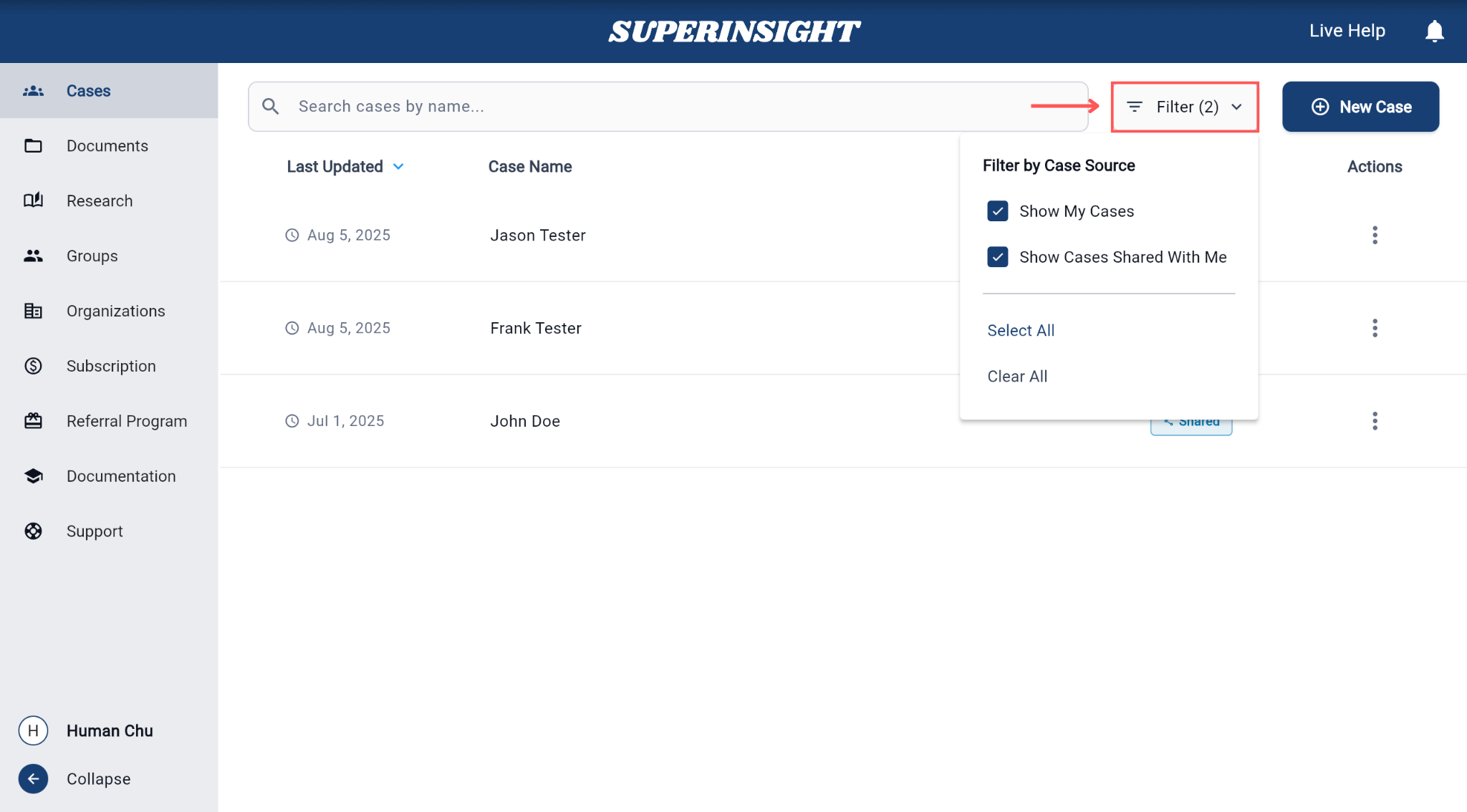
- Click the Filter button at the top right of the case list.
- Choose one or both options:
- Show My Cases — cases you created or own
- Show Cases Shared With Me — cases others shared with you
- Optional:
- Select All — turn both filters on
- Clear All — reset the filters
Your list updates right away based on what you select.
Shared vs owned
Cases shared with you may show a different icon. See Share a case for more on shared access.