Integration
Overview
The Integration feature allows you to import cases from external systems such as Chronicle into Superinsight. This streamlines your workflow by eliminating manual case creation and ensuring data consistency between systems.
Available Integrations
Superinsight supports integration with the following external systems:
Chronicle
- Type: Legal practice management system
- Features: Case import, data synchronization
- Status: Available
- Requirements: Chronicle API key
More Integrations Coming
Additional integrations with other legal practice management systems will be available in the near future. Contact support for specific integration requests.
How to Use Integration
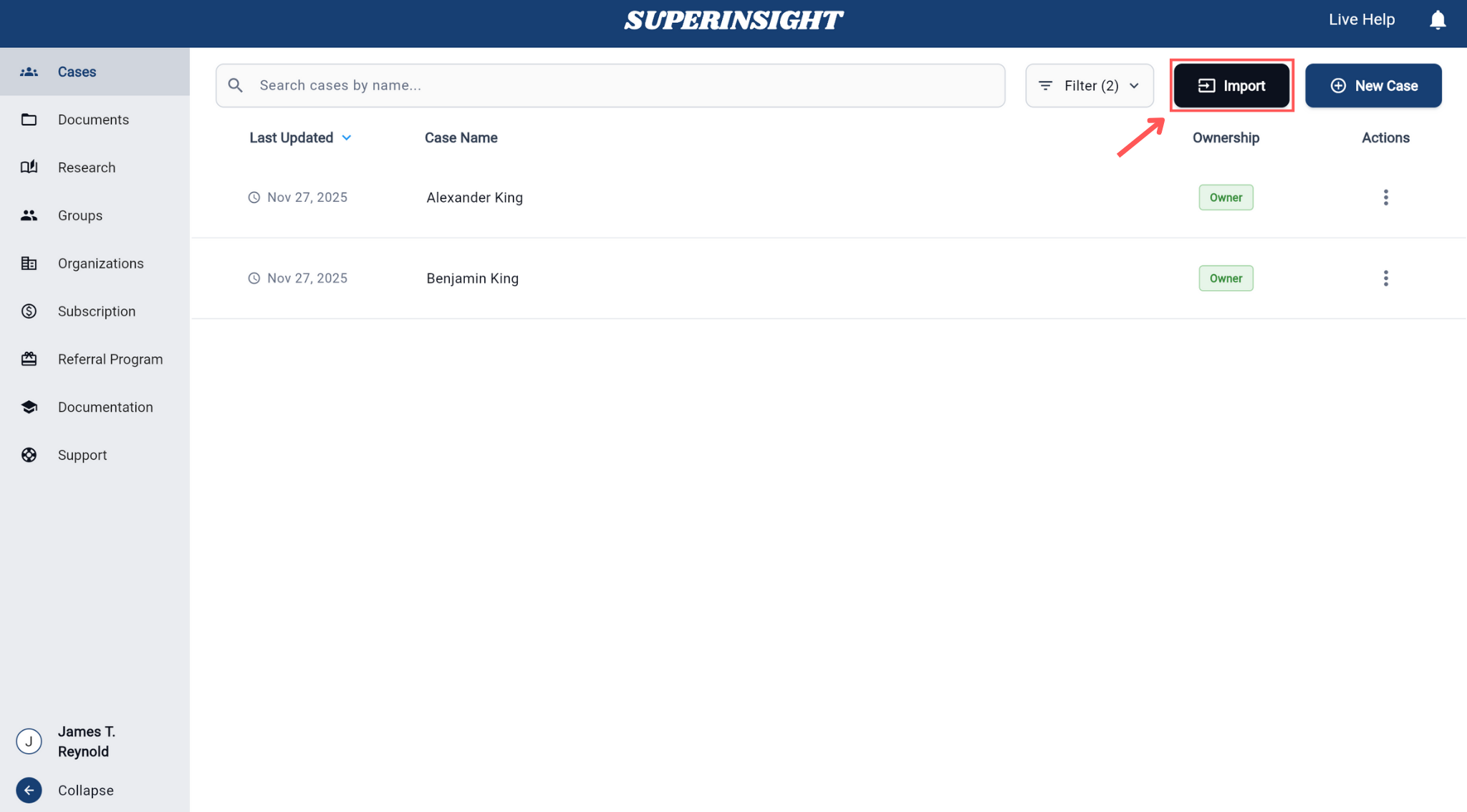
Step 1: Access Import Function
Navigate to the Cases page from the left sidebar. Click the Import button located in the top-right corner of the case list to begin the integration process.
Step 2: Configure Source and API Key
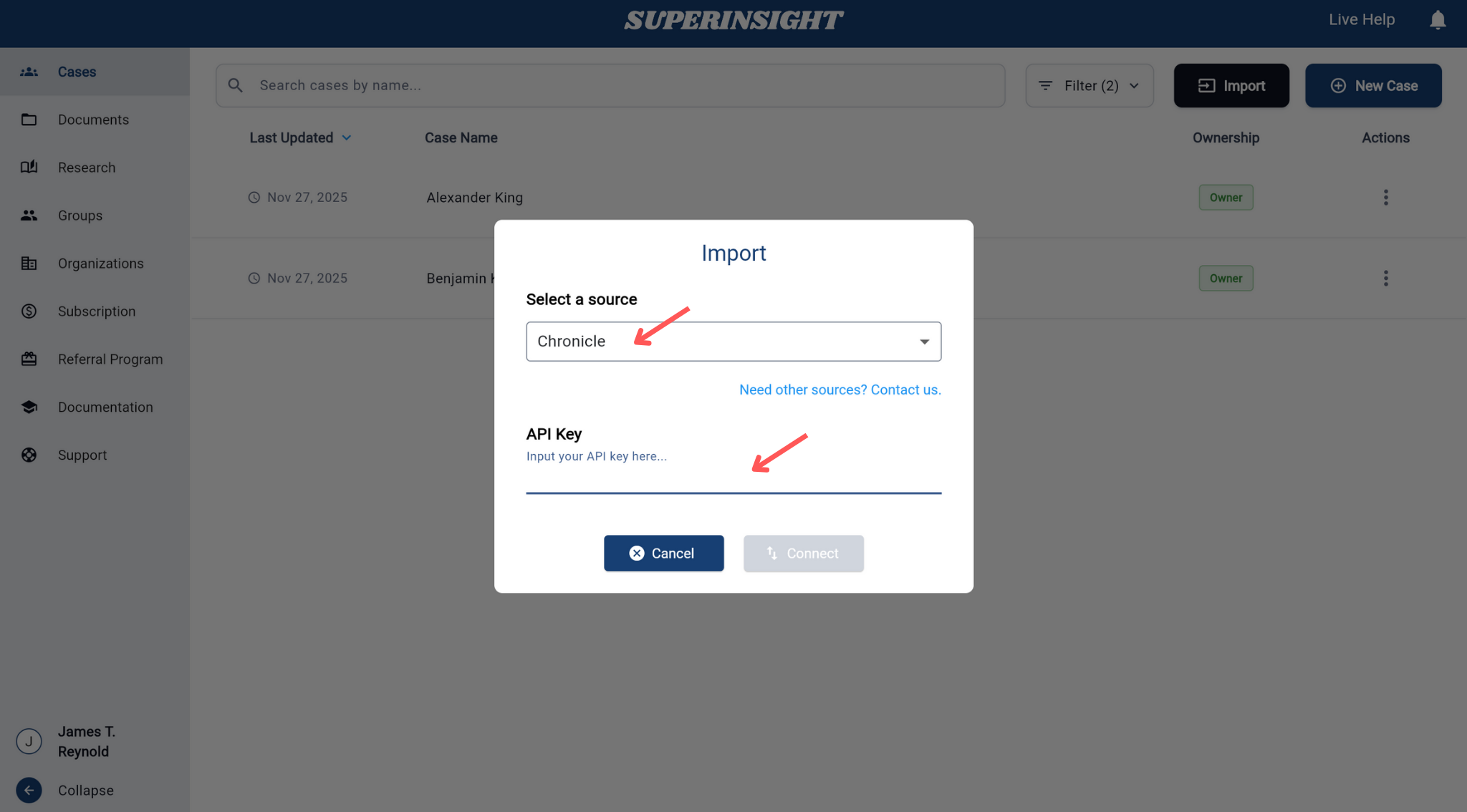
In the Import dialog:
- Select a Source: Choose your integration source from the dropdown menu (e.g., Chronicle)
- Enter API Key: Input your API key in the provided field to establish the connection
- Connect: Click the Connect button to authenticate your integration
Step 3: Search and Select Cases
Once connected, you can search for cases to import:
- Search by Name: Enter the case name or client name in the search field
- Search by SSN: Use the last 4 digits of SSN to locate specific cases
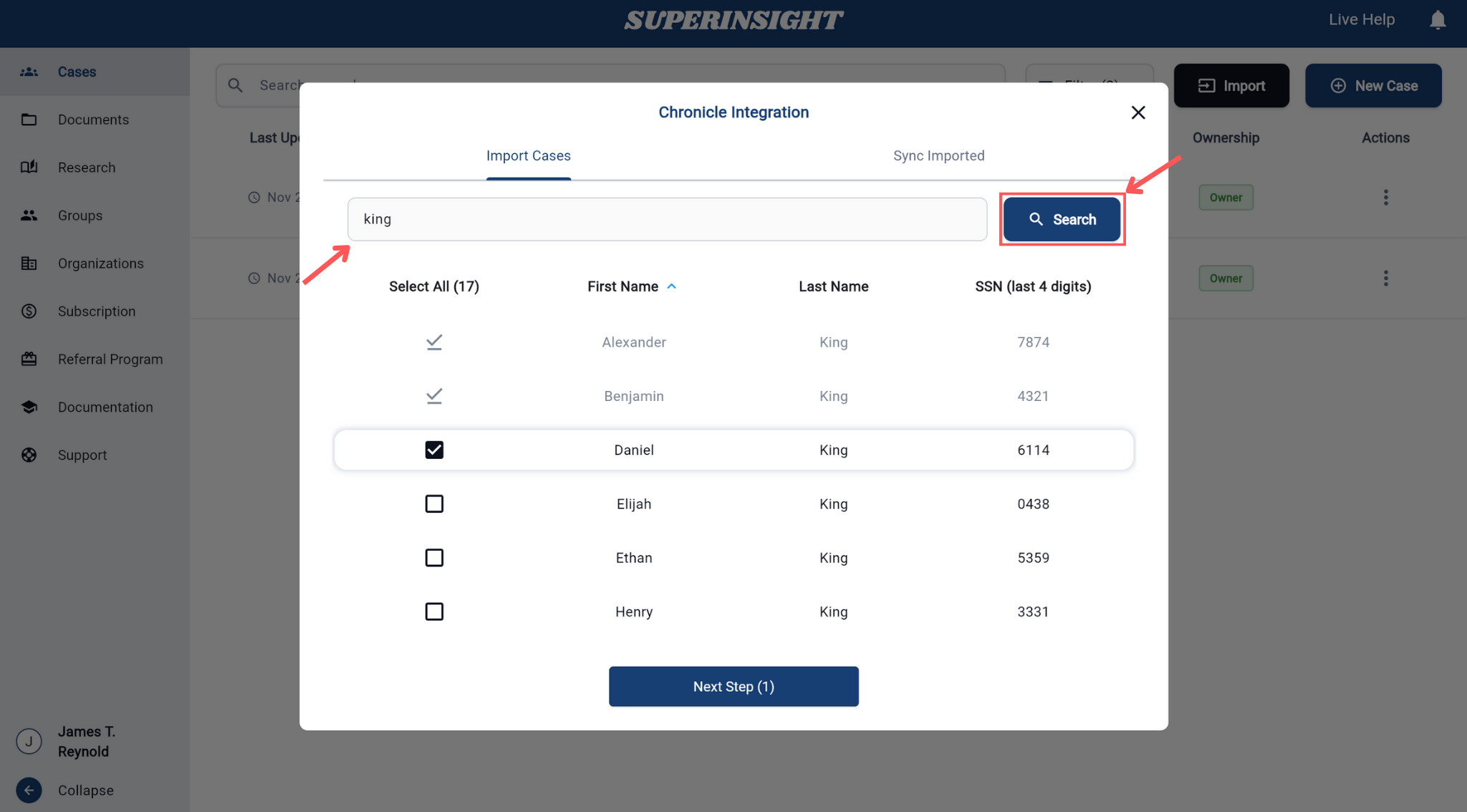
- Review Results: Browse through the search results showing First Name, Last Name, and SSN details
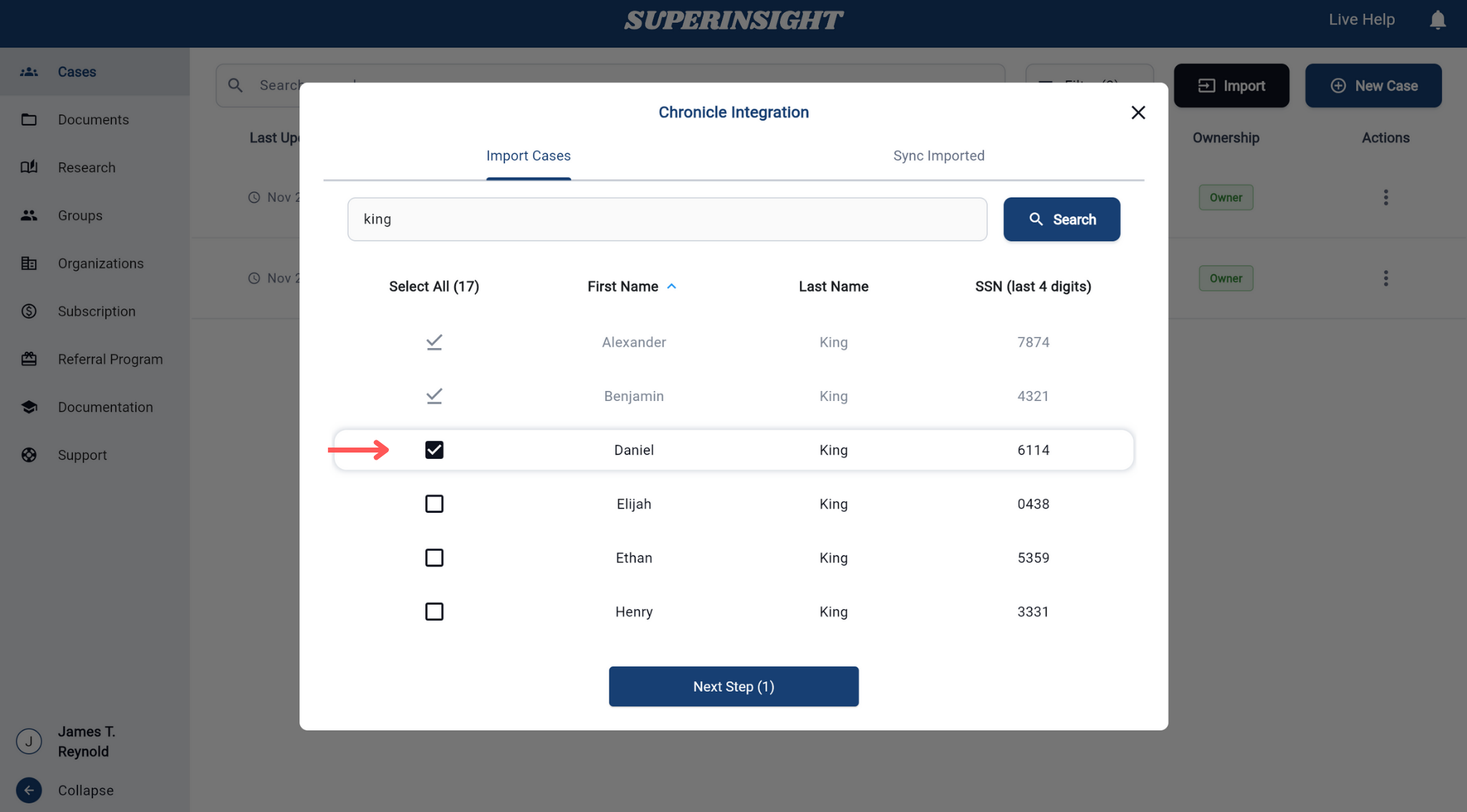
- Select Cases: Check the boxes next to the cases you want to import
- Next Step: Click Next Step to proceed with the selected cases
Step 4: Import Process
After selecting your cases:
- Confirm Selection: Review your selected cases in the import queue
- Start Import: Click the import button to begin the process
- Wait for Sync: The import process may take several minutes to complete as the system synchronizes data from the external source
Import Time
Import cases need to wait a few minutes to sync. Please be patient while the system retrieves and processes the case data from the external source.
Syncing Imported Cases
Once cases have been imported, you have multiple options to keep them synchronized with the external source.
Method 1: Sync Imported Tab
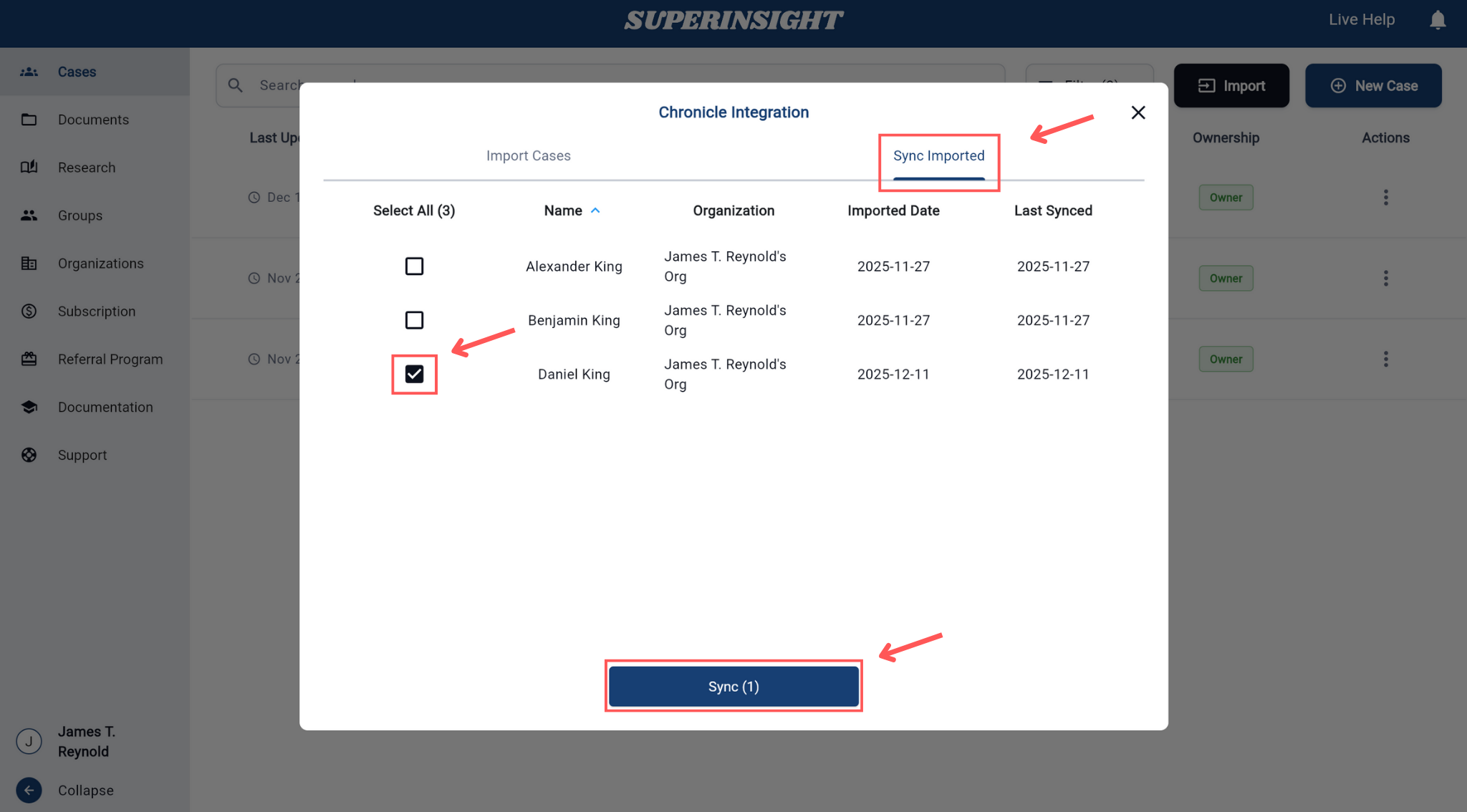
Use the Sync Imported tab in the integration interface to manage previously imported cases:
- Access Sync Imported: Click on the "Sync Imported" tab in the integration dialog
- View Imported Cases: See all previously imported cases with their import dates and last sync status
- Select Cases to Sync: Choose which cases you want to update
- Sync: Click the Sync button to update the selected cases
Method 2: Individual Case Sync
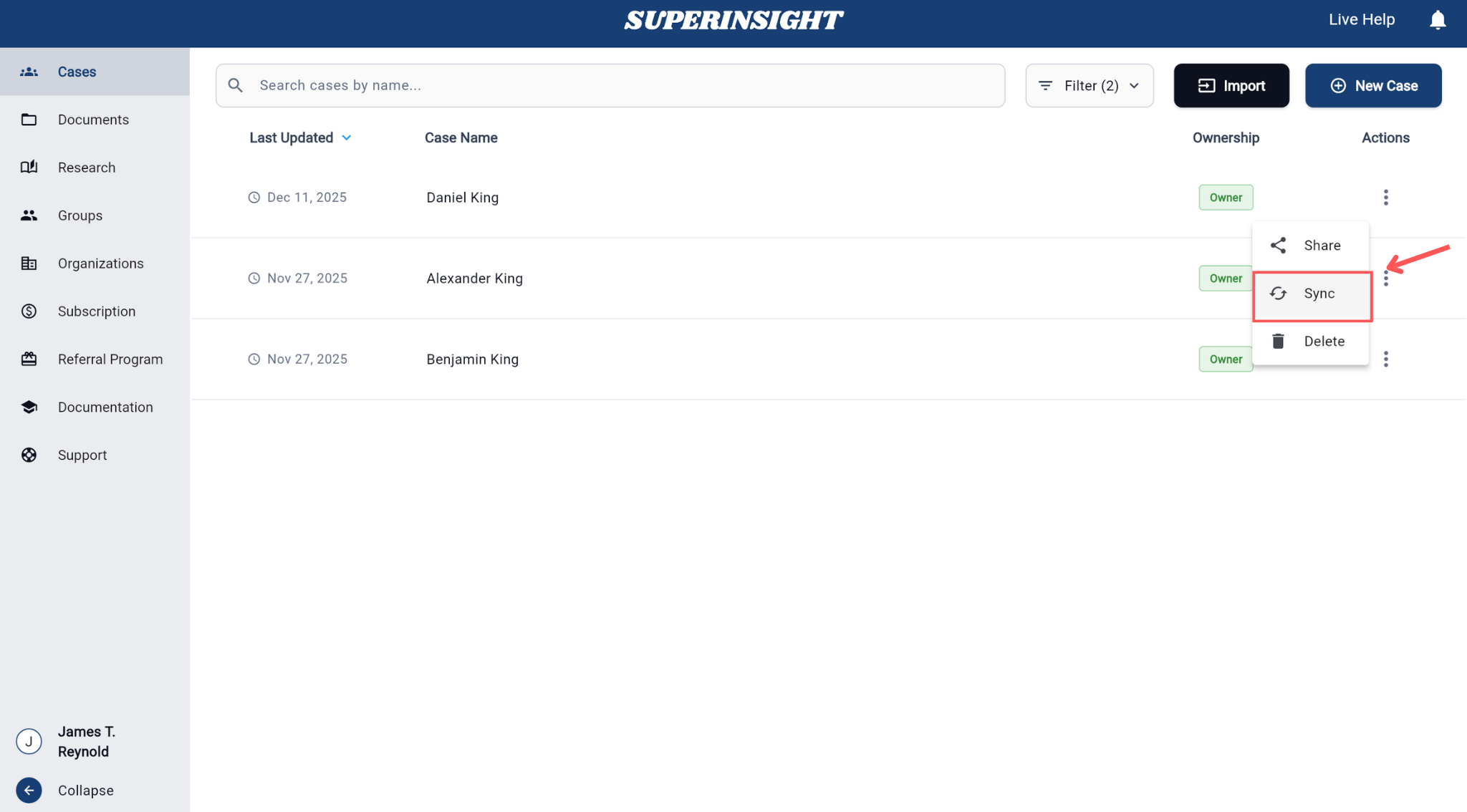
You can also sync individual cases directly from the case list:
- Locate Case: Find the case you want to sync in your case list
- Actions Menu: Click the three dots (⋮) in the Actions column for that case
- Select Sync: Choose Sync from the dropdown menu to update that specific case
Requirements
Integration requires API access from your external system provider. Contact them to obtain the necessary API key.
Security
Only use API keys from trusted sources and ensure your external system meets security requirements.